This guide is private. Enter your username and PIN to unlock it.
GUIDE / NO-CODE PIPELINE
PinterestGeminiStitch
NO-CODE WORKFLOW · 4 STAGES · ~20 MIN READ
Design it on Pinterest. Write it with Gemini. Build it with Stitch.
You don't need to know how to design or code to ship a real, working
website. This guide chains three free tools into a single assembly
line — moodboard in, downloadable site out. We'll walk it end to end
using a children's school website as the running example.
No coding requiredAll tools are freeOutput: real HTML
The pipeline, at a glance
Four stages, three tools, one output. Each stage's job is to hand off
exactly one thing to the next.
01
Design
Pinterest
Find a layout you'd steal for yourself.
02
Content
Gemini
Turn that layout into editable copy.
03
Build
Stitch
Hand both off and get a real site.
04
Ship
Download
Unzip, open, it's live on your machine.
STAGE 01 · PINTEREST
Find a design that fits
Before you touch a single tool that builds anything, spend ten
minutes finding a layout you actually like. Pinterest's search is
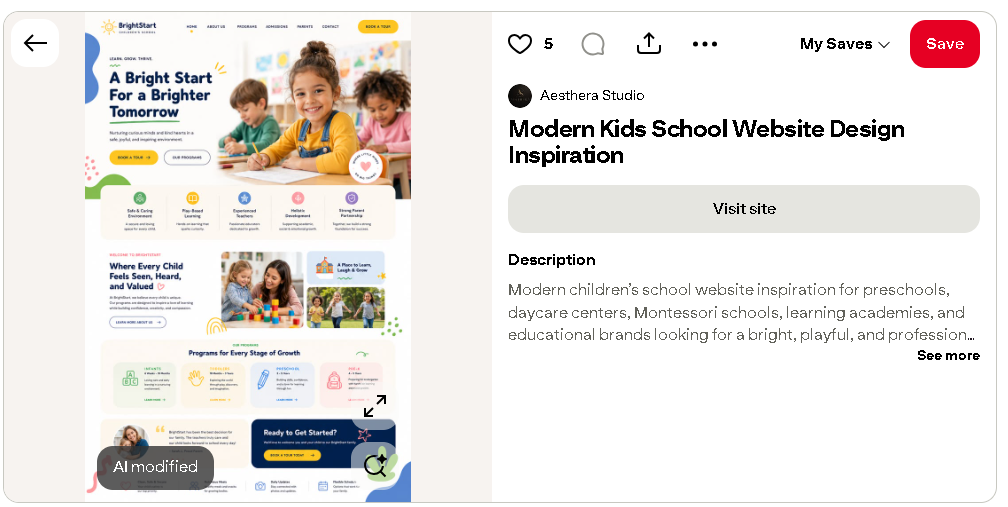
the fastest moodboard on the internet, and the image you land on
becomes the reference every later stage points back to.
>
>
>
>
1
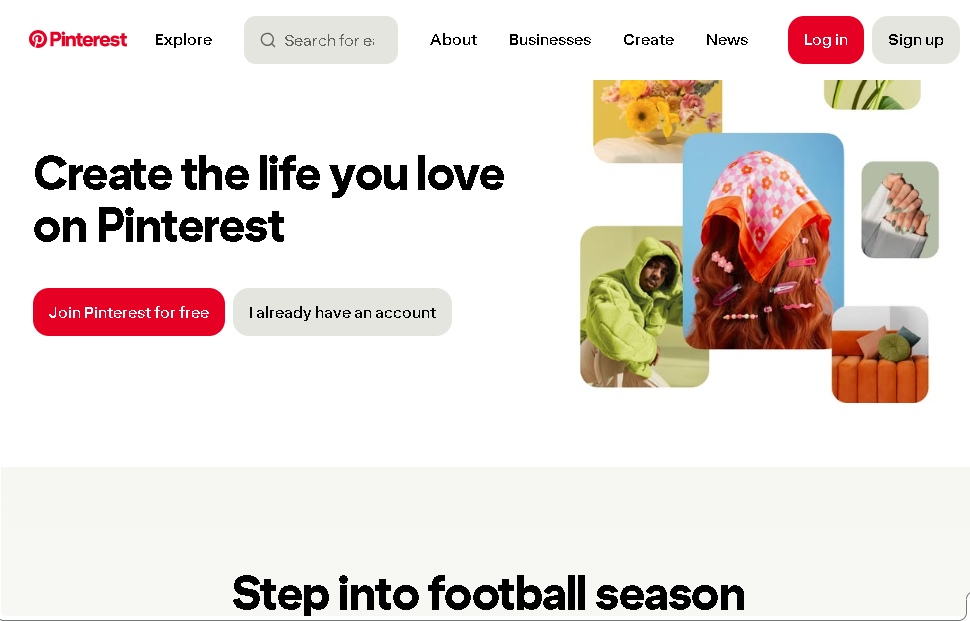
Create a free account at
pinterest.com.
2
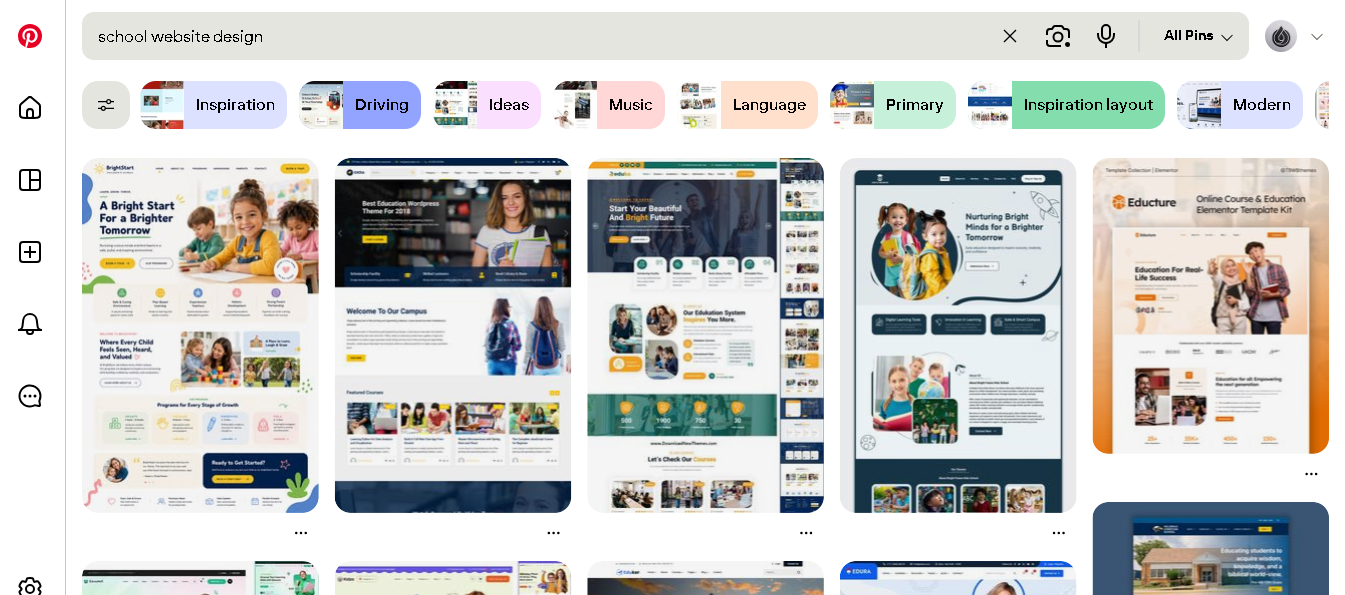
Search for your website type
— be specific. "School website design" surfaces far better
results than "school website."
3
Scroll and shortlist a
handful of pins that match the tone you want — playful,
corporate, minimal, whatever fits.
4
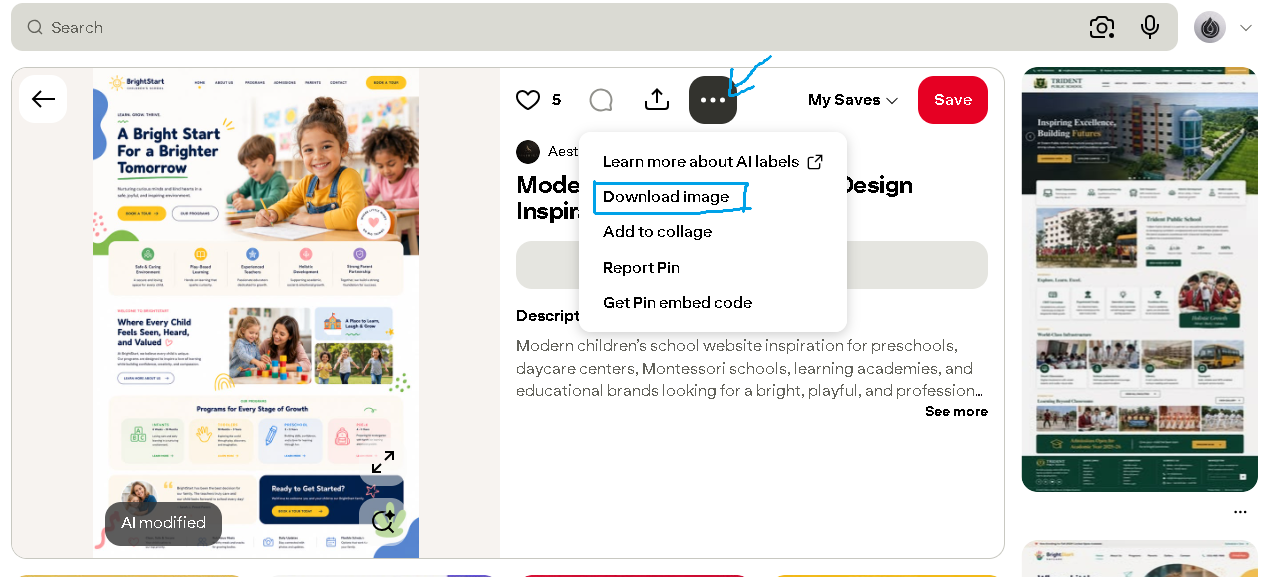
Open your favorite and click
the
···
menu, then
Download image.
5
Confirm the download location
— you'll upload this exact file in the next two stages.
TIP — the
more specific your search terms, the less editing you'll do
later. "Modern kids school website inspiration" beats "website"
every time.
STAGE 02 · GEMINI
Turn the design into words
A design you downloaded from Pinterest is just a picture — it
isn't your copy, your navigation labels, or your calls to action.
Gemini can read the image and hand back every piece of text it
contains, organized section by section, ready for you to rewrite.
1
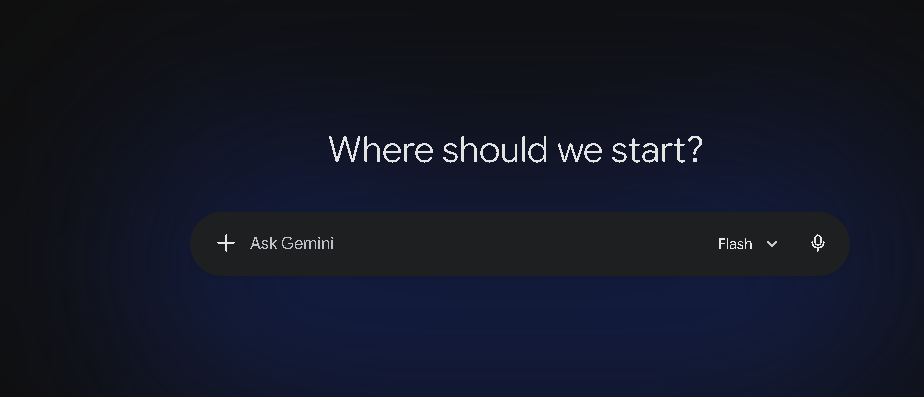
Go to
gemini.google.com and
click the
+
icon in the prompt box.
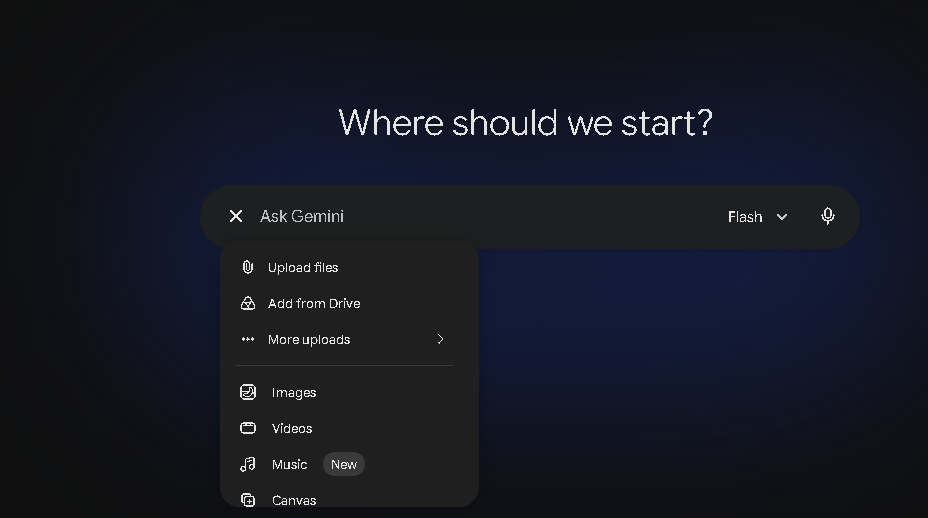
2
Choose Upload files and
select the design image from Stage 01.
3
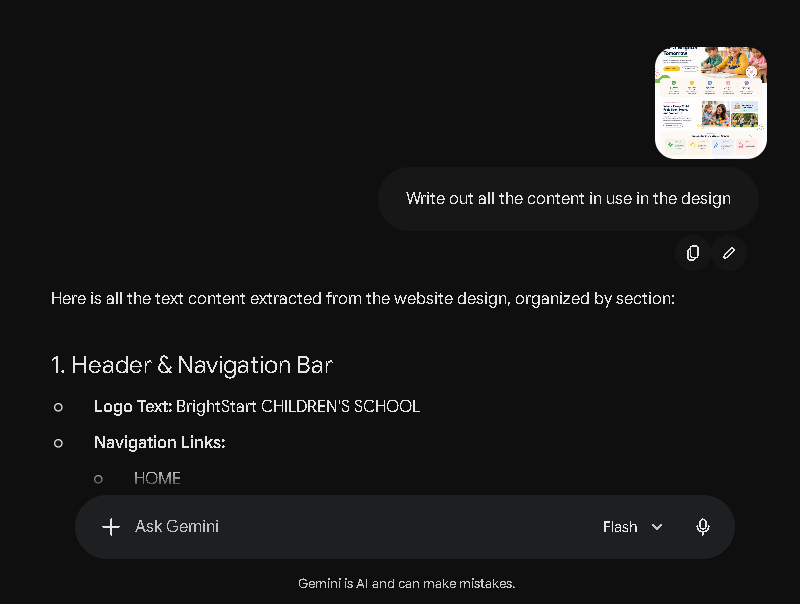
Prompt it with:
"Write out all the content used in the design."
4
Gemini returns the copy broken into sections — header, hero,
programs, footer, and so on.
5
Rewrite it as your own — swap
in your real name, offerings, and tone before moving on.
TIP — this
step is just reverse-engineered copywriting. Keep the section
structure Gemini gives you; only the words inside each section
need to change.
STAGE 03 · STITCH
Let Stitch build the real thing
This is the stage where a picture and some words become an actual,
functioning website. Google's Stitch takes your reference image
and your rewritten content and generates a responsive page — live
preview included — in about the time it takes to read this
sentence.
1
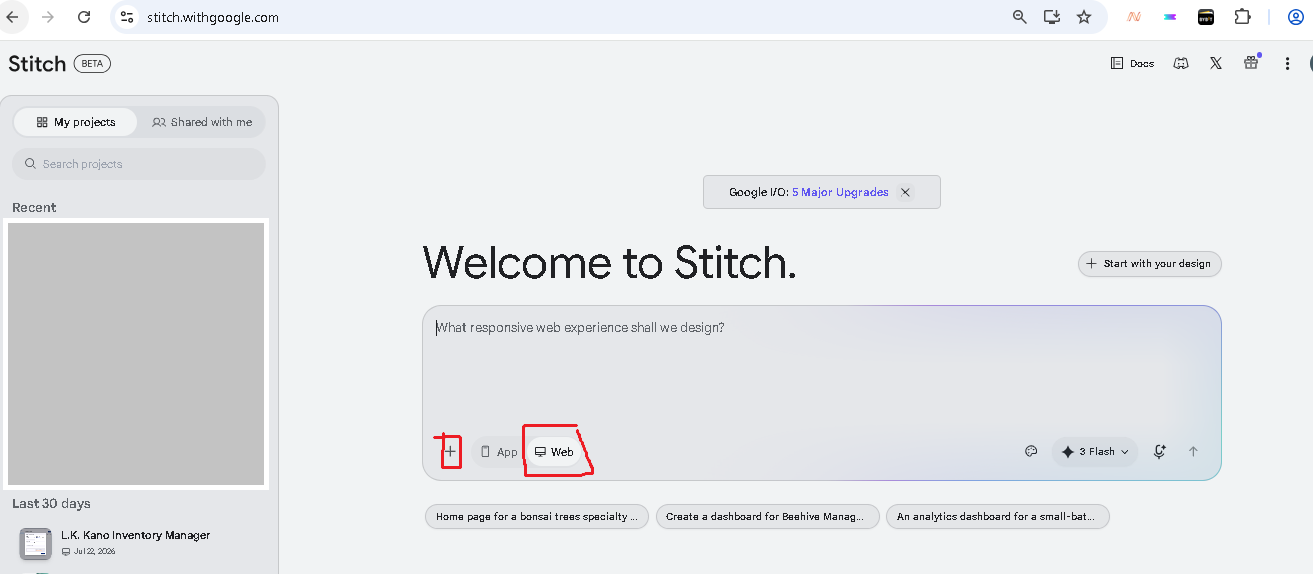
Go to
stitch.withgoogle.com.
2
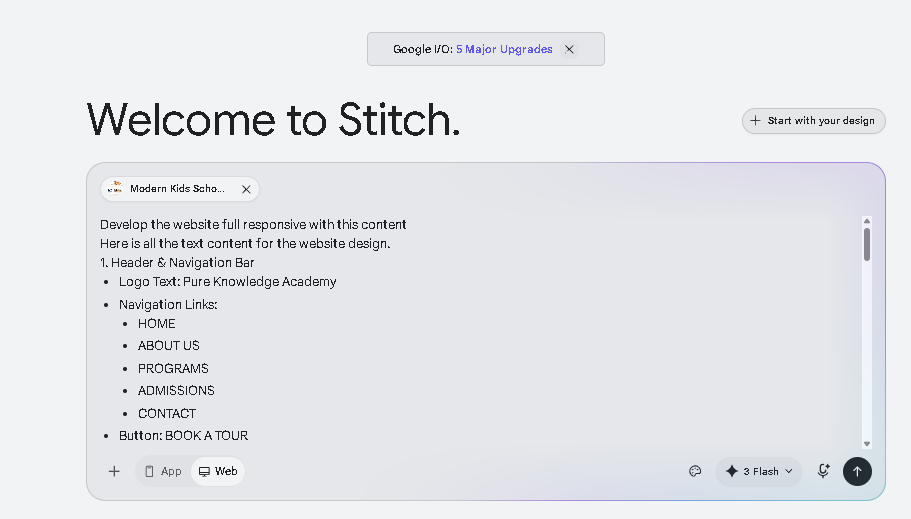
Upload the same design image
and paste your edited content into the prompt box.
3
Add an instruction like
"Develop the website, fully responsive, using this
content."
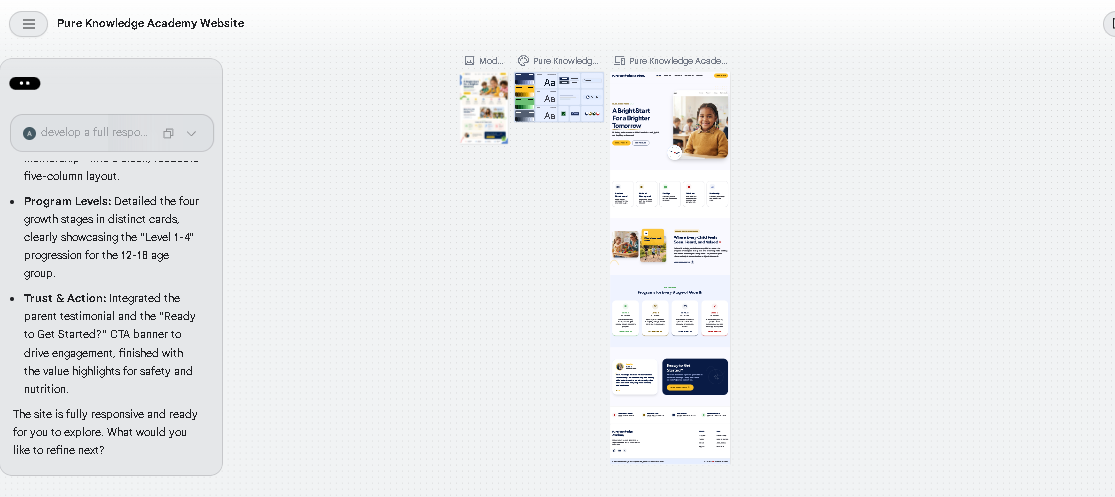
4
Stitch generates the layout immediately, with a live preview
on the right.
5
Not quite right? Reply with a follow-up prompt — "make the
buttons rounded," "tighten the hero" — and it revises in
place.
TIP — treat
the first generation as a draft. Two or three follow-up prompts
usually get you further than trying to write the perfect prompt
up front.
STAGE 04 · DOWNLOAD
Ship it
The last stage is just plumbing: get the generated site out of
Stitch and onto your computer as real files you can open, inspect,
and eventually host anywhere.
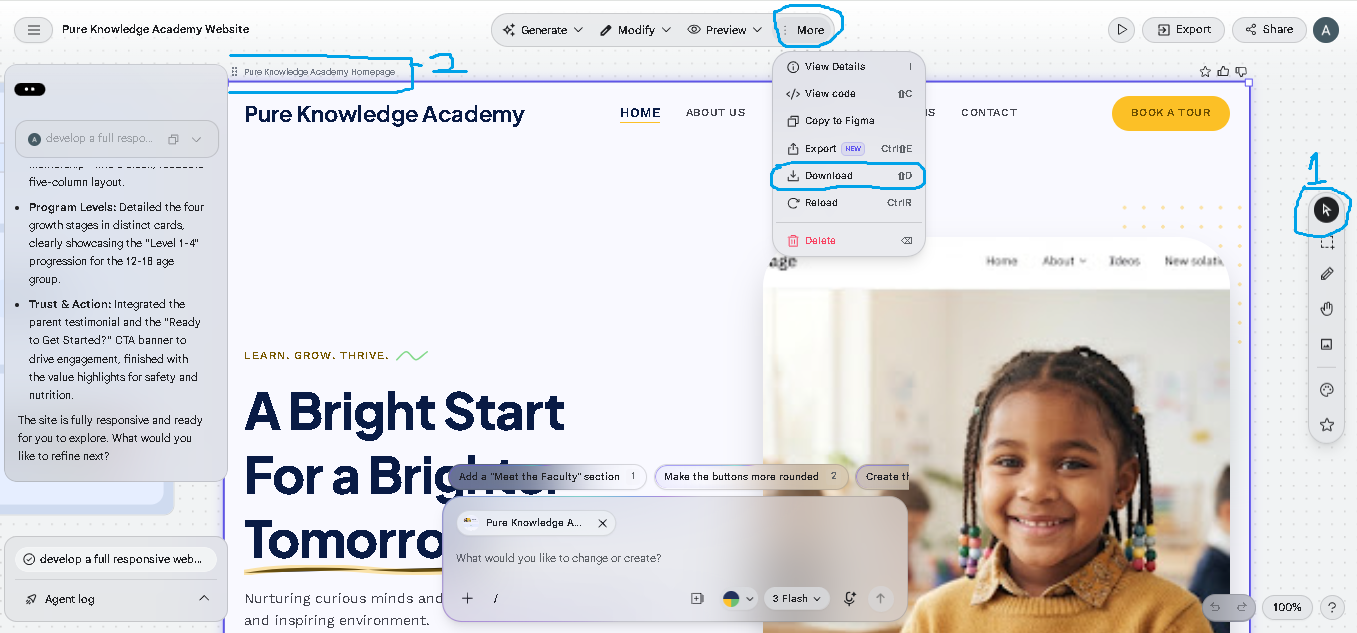
1
Once the design is done, open the detail view and click
More
in the top bar.
2
Select Download — Stitch
packages everything into a
.zip file.
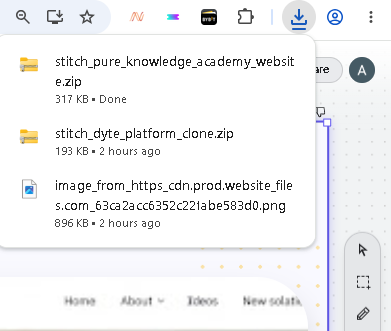
3
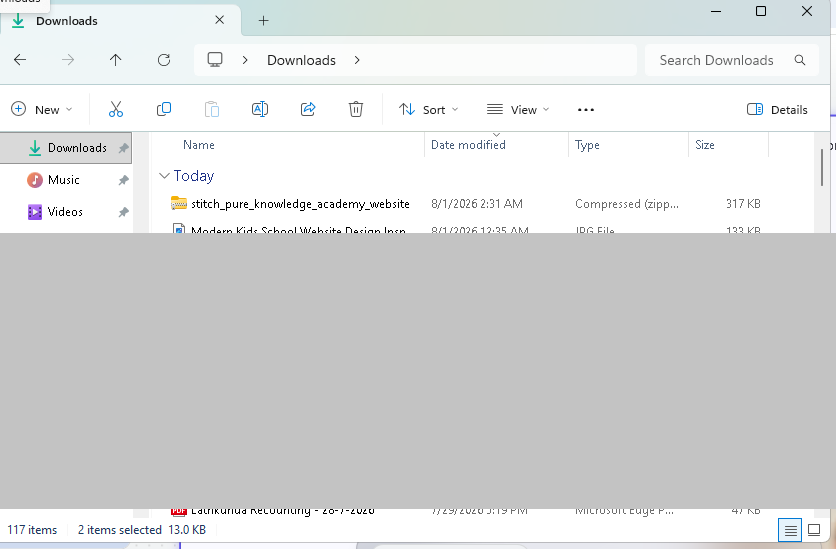
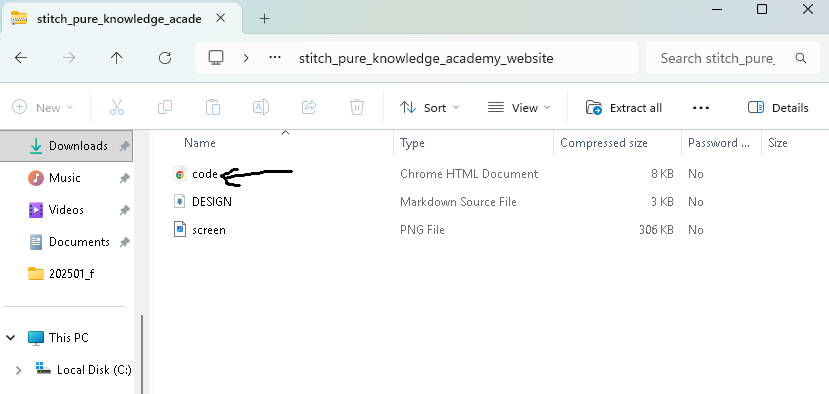
Find the zip in your downloads folder and extract it. Inside
you'll find a code file, a design summary, and a preview
image.
4
Open the code file in your
browser — your website is live, right there, on your machine.
NEXT — from
here, hosting it on something like Netlify, Vercel, or GitHub
Pages takes it from "file on your desktop" to "live on the
internet."
The whole pipeline, one more time
Pinterest gives you a design worth wanting. Gemini turns that design
into words you can actually edit. Stitch turns your image and your
words into a working site. And the download button turns that into a
file on your desktop. None of it requires writing a line of code —
it just requires knowing which tool to hand the baton to next.
 >
>
 >
>
 >
>
 >
>